eTimeTrackLite: Setup, Common Problems and Moving to the Cloud
Install eTimeTrackLite, connect your eSSL machine, fix sync errors and export reports, plus a checklist for when to move to the cloud.
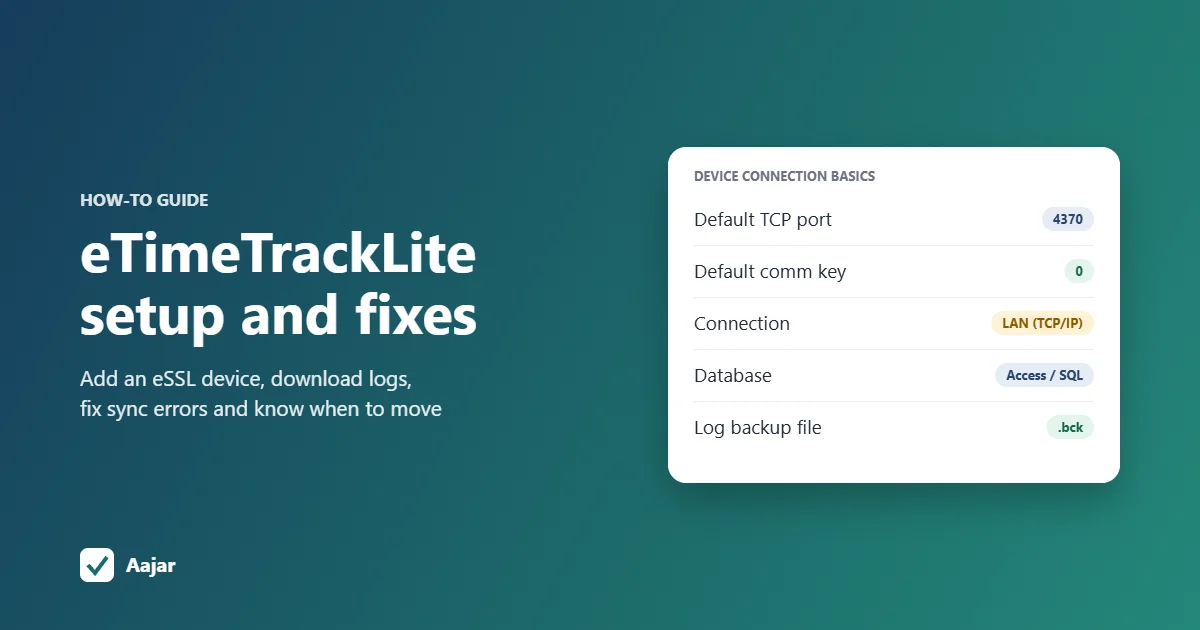
Short answer: eTimeTrackLite is eSSL's free Windows time-attendance software. It runs on one office PC, pulls punches from your eSSL fingerprint or face machine over the local network and turns them into daily and monthly attendance reports. To connect a machine you need its IP address, the TCP port (4370 by default on eSSL devices) and the comm key (0 unless someone changed it); most problems come from a wrong IP or comm key, a wrong device clock, or the PC being switched off.
This guide is for people who already use eTimeTrackLite or have just bought an eSSL machine. It covers installation, adding a device, downloading logs, a troubleshooting table, reports and exports, and a checklist to decide when the software has stopped fitting your business.
What is eTimeTrackLite?
eTimeTrackLite is the attendance software eSSL offers with its biometric machines. eSSL's software download page lists a desktop version (eTimeTrackLite Desktop 12.2) and a separate web version, and the product site calls it free time-attendance software (etimetracklite.com).
Most small businesses use the desktop version. It pulls punches from the machine, applies your shift and late rules, and gives you registers and reports. The eSSL eTimeTrackLite Mobile App on the App Store and Google Play is an employee self-service app with GPS punches and leave records (App Store listing); its listing doesn't say which server it needs, so ask your eSSL dealer before you plan around it.
| eTimeTrackLite Desktop | eTimeTrackLite Web | |
|---|---|---|
| Runs on | One Windows PC | A Windows web server with MS SQL or Oracle |
| Database | MS Access, SQL Server or Oracle Express | MS SQL, Oracle; parallel export to MySQL |
| Who sets it up | You or your dealer | Usually your dealer or IT team |
| Typical user | One office or factory gate | Larger or multi-site setups |
Sources: the eTimeTrack-Lite 11.9 manual, pp. 7 to 10 (eSSL eTimeTrackLite manual, PDF) and eSSL's eTimeTrackLite Web page, checked 18 October 2026.
How do I install eTimeTrackLite?
Download the desktop setup from eSSL's own software page, not from third-party download sites. Older eSSL desktop documentation recommends at least a dual-core processor and 2 GB RAM on a Windows PC; any office PC bought in the last few years is enough for a small team.
- Pick the PC carefully. It should stay on during working hours and sit on the same network (same router or switch) as the machine.
- Install and open eTimeTrackLite from the Programs menu.
- Choose the database under Database Settings: MS Access for a single small office, SQL Server if your IT team already runs one. Click Test Connection before you save (manual, pp. 7 to 10).
- Log in. The manual gives the default login name and password as essl and essl (p. 11). Change them on day one, because the defaults are printed in a public manual.
- Do the master setup: company, departments, shifts with grace time, holidays, and then employees, each with an employee code and the device code (enrolment number) used on the machine (pp. 14 to 44).
Note that automatic backup is offered only for the MS Access database (manual, p. 14). If you choose SQL Server, make sure someone backs it up.
How do I add an eSSL device to eTimeTrackLite?
First note three settings on the machine, usually under its COMM menu (menu names vary by model): the IP address, the TCP COMM port and the comm key. eSSL's device manuals give 4370 as the factory default TCP port (eSSL AiFace-Venus user manual, p. 33), and the comm key, the device's communication password, is normally 0.
- Give the machine a fixed IP in your office range, for example 192.168.1.201 if your PC is 192.168.1.20. A fixed IP stops the router from changing it later.
- Check the link by pinging the machine's IP from the PC (open Command Prompt and type ping 192.168.1.201).
- In eTimeTrackLite, open Device Management and click Add. Enter the device name, serial number, connection type, device type, IP address, direction (in, out or in-out) and comm key (manual, pp. 57 to 58).
- Use the same comm key as the machine. The manual says it defaults to 0 or to the key set on the device.
- Set the device clock with Set Device Date & Time (p. 60).
- Download users if staff were enrolled on the machine first, so their names and fingerprints come into the software (p. 61).
How do I download attendance logs?
- Go to Device Management, then Download Logs, and select one or more machines (manual, p. 64).
- Click Start Download. By default it fetches punches after the last downloaded one; tick Download Logs from Beginning to fetch everything the machine holds.
- Recalculate attendance for the date range from the Attendance Logs or Reports screen (pp. 55 and 85), then open the register.
Be careful with Auto Clear After Download and Clear Logs, because cleared device logs cannot be restored (manual, p. 63). Leave punches on the machine until you have checked the month and taken a backup with the Backup option (p. 68).
For regular downloads, the Online Downloader runs on a set interval and the Scheduler runs once every 24 hours (pp. 80 to 81). Both work only while the PC and the software are running.
Common eTimeTrackLite problems and how to fix them
| Problem | Likely cause | What to check |
|---|---|---|
| Device not connecting | Wrong IP, PC on a different network, comm key mismatch, firewall | Ping the machine's IP; match the IP and comm key in Device Management with the device's COMM menu; confirm port 4370 on the device; allow eTimeTrackLite through Windows Firewall |
| Connected yesterday, not today | Router gave the machine (or PC) a new IP after a power cut | Set a fixed IP on the machine outside the router's DHCP range |
| Wrong punch times | Device clock drifted or was reset after a power cut | Correct the PC's time, then use Set Device Date & Time; let the Scheduler sync time daily |
| Punches downloaded but employee shows absent | Device code in the employee master doesn't match the enrolment number on the machine | Compare the employee's device code with the user ID on the machine; recalculate attendance |
| Old or missing punches | Download only fetches new logs; logs were cleared; machine was offline | Run Download Logs from Beginning; avoid Auto Clear; check the log report (device-wise) |
| Duplicate punches | Staff press the finger twice | Set the minimum gap between two punches in Master Setup (p. 14), then recalculate |
| Database or permission error on opening | Database file moved, Windows user can't write to its folder, or SQL Server service stopped | Re-run Database Settings and Test Connection; check the Windows user has write access to the database folder; start the SQL Server service |
| No punches for weekends or nights | The PC was off, so nothing was downloaded | Punches stay on the machine; download them when the PC is back on |
| Can't delete an old device | It has punch records in the database | This is by design (manual, p. 58); rename it instead |
If the machine still won't connect, try it with a laptop plugged straight into the same switch port. If that fails too, the issue is in the device or cable, and your eSSL dealer should look at it.
What reports can eTimeTrackLite produce, and how do I export them?
The reports menu is large. The ones most small businesses use are below (manual, pp. 85 to 143).
| Report | Use it for |
|---|---|
| Daily: Basic, Late Coming, Early Going, Absent, Missed Out Punch | The morning headcount and follow-ups |
| Monthly: Basic, Detailed, Status Summary, OT Summary | Payable days and overtime for payroll |
| Customised: Muster Roll | A monthly attendance register |
| Log reports: device-wise, date-wise, employee-wise | Checking raw punches when someone disputes a day |
| Export Logs: attendance logs, device logs, custom or SAP format | Sending punches to payroll or another system as text, CSV or .dat files (pp. 131 to 132) |
The manual also has a pay slip option, which needs attendance recalculated first (p. 75). Many small businesses still export the monthly report and work out pay in Excel or a payroll tool. Our attendance sheet in Excel guide has formulas for payable days and loss of pay if you take that route.
What are the limits of eTimeTrackLite?
- One PC holds everything. If it crashes or the hard disk fails without a backup, your attendance history goes with it.
- The PC must be on to collect punches. The machine stores them, but reports are only as current as the last download.
- Remote access is awkward. Checking attendance from home or a second office usually means remote desktop software or the web version on a server.
- Multi-branch is hard. A machine at another site isn't on your office LAN, so it needs a VPN, port forwarding with a static IP, or a separate PC at each site.
- Leave and payroll need extra work. In the desktop software, HR enters leave and runs pay slips on the same PC. Leave approvals from a phone and statutory deductions usually mean another app or Excel.
Is it time to move off eTimeTrackLite? A checklist
Tick the ones that apply to you.
- You have, or plan, a second branch, store or site with its own machine.
- The owner or HR wants to see today's attendance from a phone.
- Someone has to remember to switch on the PC or download logs before reports are right.
- You re-type eTimeTrackLite totals into Excel or a payroll tool every month.
- Leave requests come by WhatsApp or paper and are entered later.
- Some staff work in the field and can't reach the machine.
- You have no tested backup of the attendance database.
If you ticked one or two, tidy up the setup: fixed IP, regular backup, time sync. If you ticked three or more, a cloud system will probably save more time than it costs.
Take a 25-person retail chain with three stores: with eTimeTrackLite each store's machine needs its own PC or a VPN, while a cloud setup has all three machines push punches to one account. Our guide to choosing an employee attendance app lists what to compare.
Moving from eTimeTrackLite to the cloud
You don't need new machines. Most recent eSSL devices have a Cloud Server (ADMS) setting that sends punches over the internet to a cloud attendance app, with no PC or static IP. The full device-side steps are in our guide on how to connect an eSSL biometric device to a cloud app (ADMS).
Before you switch, export your punch history from eTimeTrackLite (Export Logs, custom format as CSV) and keep a database backup. Run both systems side by side for one month and compare the totals before you stop using the PC.
Using your eSSL machine with Aajar
On Aajar's Business plan (₹50 per user per month), eSSL and similar fingerprint or face terminals push punches straight to Aajar over ADMS. You register the machine by serial number and map each person's enrolment number. The earliest punch of the day becomes check-in and the latest check-out, so double thumbs and lunch punches don't create errors.
Leave, late marks and payroll with payslips run in the same app. For machines without internet, or older months, "Import a device's log" takes a two-column file (biometric ID and punch date-time) and works with eTimeTrackLite exports. Enrolling fingerprints and setting the cloud address are still done on the machine itself; every plan is free for 3 months for organisations with up to 50 users (see Aajar pricing).
Frequently asked questions
Is eTimeTrackLite free?
Yes, eSSL offers the desktop software free for use with its machines, and you can download it from eSSL's software page. Dealers may charge for installation, the web version or support.
What is the default username and password for eTimeTrackLite?
eSSL's manual gives essl as both the login name and password. Change them after your first login.
What port does eTimeTrackLite use to connect to the device?
eSSL machines use TCP port 4370 by default for LAN connections. Check the COMM menu on your machine in case your dealer changed it.
Why does my eSSL device show the wrong time?
The device clock drifts or resets after power cuts. Correct the PC's time, then use Set Device Date & Time in eTimeTrackLite, and schedule a daily time sync.
Can I use eTimeTrackLite for more than one branch?
Only if each branch's machine can reach the PC, through a VPN or port forwarding, or with a PC at each site. A cloud app over ADMS avoids this, since each machine sends punches over the internet.
Can I import eTimeTrackLite data into another attendance app?
Yes. Use Export Logs to save punches as a CSV or text file with the employee code and punch date-time, then import it into the new app's log import.
Keep reading
Rotational Shift: Patterns, Fair Planning and a 24x7 Example
Rotation patterns compared, a fair-planning checklist and a 3-week roster for a 24x7 site that stays within 48 hours a week.
Shift Management for Small Teams: Coverage, Swaps and Fairness
How many staff each shift needs, worked through for a 15-person restaurant, plus shift swap rules and ways to keep rosters fair.
Duty Roster Format: Free Shift Roster Templates for Retail, Security and Hospitals
Three ready duty roster formats for retail, security and hospital wards, plus shift codes and Excel steps to build your own.