Attendance Sheet in Excel: Free Template and Formulas
Build a monthly attendance sheet in Excel with codes, drop-downs and COUNTIF formulas for payable days and loss of pay, and know when to switch to an app.

Short answer: to make an attendance sheet in Excel, put employee names in rows and the days of the month (1 to 31) in columns, mark each day with a code such as P, A, HD, WO, H or CL, and use COUNTIF to total each code at the end of the row. Add a drop-down list so only valid codes can be entered, and conditional formatting so absences stand out. Below is a free layout with ready formulas you can copy. Excel works well for up to about 10 to 15 people; beyond that, an attendance app saves time and errors.
This guide walks through building the sheet step by step, the formulas for payable days and loss of pay, and the signs it's time to move to an app.
Attendance codes to use
There is no official list of codes, so choose a set and use it consistently. These are the most common in Indian businesses:
| Code | Meaning | Counts as |
|---|---|---|
| P | Present | 1 paid day |
| A | Absent without approval | Loss of pay |
| HD | Half day | 0.5 paid, 0.5 loss of pay |
| WO | Weekly off | Paid |
| H | Public holiday | Paid |
| CL / SL / EL | Casual, sick or earned leave | Paid leave |
| CO | Compensatory off | Paid leave |
| OD | On duty (client visit, travel) | Present |
| LWP | Leave without pay | Loss of pay |
Free attendance sheet layout
Set up one sheet per month like this. Row 3 holds the headers and each employee gets a row from row 4.
| Column | Header | What goes in it |
|---|---|---|
| A | Emp code | EMP-001 |
| B | Name | Employee name |
| C to AG | 1 to 31 | One code per day |
| AH | Present | Formula |
| AI | Paid leave | Formula |
| AJ | Offs and holidays | Formula |
| AK | Loss of pay days | Formula |
| AL | Payable days | Formula |
Put the month's first date in cell B1 (for example 01-10-2026), and list your holidays on a separate sheet named Holidays, in cells A2 downwards.
Formulas to copy
Enter these in row 4 and drag them down for every employee.
| Cell | Formula | What it does |
|---|---|---|
| AH4 (Present) | =COUNTIF(C4:AG4,"P")+COUNTIF(C4:AG4,"OD")+0.5*COUNTIF(C4:AG4,"HD") | Counts present and on-duty days, plus half of each half day |
| AI4 (Paid leave) | =SUM(COUNTIF(C4:AG4,{"CL","SL","EL","CO"})) | Counts all paid leave codes |
| AJ4 (Offs and holidays) | =COUNTIF(C4:AG4,"WO")+COUNTIF(C4:AG4,"H") | Counts weekly offs and holidays |
| AK4 (Loss of pay) | =COUNTIF(C4:AG4,"A")+COUNTIF(C4:AG4,"LWP")+0.5*COUNTIF(C4:AG4,"HD") | Counts unpaid days |
| AL4 (Payable days) | =AH4+AI4+AJ4 | Days to pay for the month |
COUNTIF isn't case-sensitive, so "p" and "P" both count. It checks one condition at a time, which is why the formulas add several together (Microsoft: COUNTIF).
Working days in the month
To find how many working days a month has, use NETWORKDAYS.INTL. For a six-day week with Sunday off:
=NETWORKDAYS.INTL(B1,EOMONTH(B1,0),11,Holidays!A2:A20)
The weekend code 11 means Sunday only. Use 1 for Saturday and Sunday, or a seven-character string such as "0000011" (Monday first, 1 = day off) for any other pattern (Microsoft: NETWORKDAYS.INTL).
Loss of pay deduction
A common method is daily rate = monthly salary ÷ days in the month, then multiply by loss of pay days. With the monthly salary in column AM:
=ROUND(AM4/DAY(EOMONTH($B$1,0))*AK4,0)
Some companies divide by 26 or by the month's working days instead. Whichever you choose, write it in your leave policy and use it every month.
Step by step: build the sheet
- Create the headers in row 3 as shown in the layout table, and freeze panes at C4 (View > Freeze Panes) so names and dates stay visible.
- Add day names in row 2 with
=TEXT(DATE(YEAR($B$1),MONTH($B$1),C3),"ddd")under each date, so Sundays are easy to spot. - Add a drop-down list: select C4:AG100, go to Data > Data Validation, choose List, and enter
P,A,HD,WO,H,CL,SL,EL,CO,OD,LWP(Microsoft: drop-down lists). - Colour the codes: with C4:AG100 selected, go to Home > Conditional Formatting > Highlight Cells Rules > Equal To. Make "A" red, "HD" orange and "WO" and "H" grey (Microsoft: conditional formatting).
- Paste in the formulas from the table above and drag them down.
- Copy the sheet for each month and change the date in B1.
Where Excel attendance sheets fall short
- No proof of attendance. A sheet records what someone typed, not where or when the person checked in. There is no GPS, selfie or biometric record.
- Validation is easy to bypass. Pasted or filled-in values skip drop-down checks, and Excel doesn't flag wrong entries already in cells (Microsoft).
- Leave balances live elsewhere. The sheet counts leave taken, but not how much each person has left.
- Approvals happen in chats. Nobody can see who approved a half day or a comp off.
- Statutory records. The new attendance register-cum-muster roll must be kept for five years and include overtime. See our guide to the muster roll under the labour codes.
- It takes time. One person updating 30 rows a day and reconciling them before payroll adds up to hours each month.
When to switch from Excel to an attendance app
Excel is fine for a handful of people in one office. Consider an app when:
- You have more than 10 to 15 employees, or more than one location.
- Staff work in the field or from home, so you can't see who has arrived.
- Leave balances and loss of pay keep causing disputes.
- Payroll takes more than a day because attendance must be reconciled first.
- You want to use a biometric machine you already own.
Excel vs an attendance app
| Excel sheet | Attendance app | |
|---|---|---|
| Who marks attendance | HR or a supervisor | Each employee, from a phone or computer |
| Proof | None | Time stamp, and location if geofencing is on |
| Leave | Separate tracker | Applied, approved and deducted in one place |
| Monthly totals | Formulas you maintain | Calculated automatically |
| Payroll | Copied across | Loss of pay flows into payslips |
| Cost | Free | Free plans, or a small fee per user |
Moving from Excel to Aajar
Aajar replaces the sheet with phone and web check-ins and builds the same monthly table automatically, with present, half day, leave, holiday, weekly off and absent days. Admins can still export it to Excel. Leave balances, half-day rules and loss of pay are handled on every plan, from ₹20 per user per month, and payslips are generated from the same records. Every plan is free for the first 3 months for teams of up to 50 users. Compare it with other free attendance apps in India.
Frequently asked questions
How do I make an attendance sheet in Excel?
List employees in rows and dates in columns, mark each day with a code (P, A, HD, WO, H, CL and so on), add a drop-down list for the codes, and use COUNTIF at the end of each row to total days present, leave and loss of pay.
What is the formula for attendance in Excel?
=COUNTIF(C4:AG4,"P") counts days marked P in a row. To count half days as half: =COUNTIF(C4:AG4,"P")+0.5*COUNTIF(C4:AG4,"HD").
How do I count working days in a month in Excel?
Use =NETWORKDAYS.INTL(start_date,end_date,11,holidays) for a six-day week with Sunday off, or =NETWORKDAYS(start_date,end_date,holidays) for a five-day week.
How do I calculate loss of pay in Excel?
Divide the monthly salary by the number of days you use as the base (calendar days, 26 or working days), then multiply by the loss of pay days. Round the result to the nearest rupee.
Can Google Sheets do the same?
Yes. COUNTIF, NETWORKDAYS.INTL, data validation and conditional formatting all work in Google Sheets. For the paid leave formula, use =ARRAYFORMULA(SUM(COUNTIF(C4:AG4,{"CL","SL","EL","CO"}))) or add the four COUNTIFs together.
Keep reading
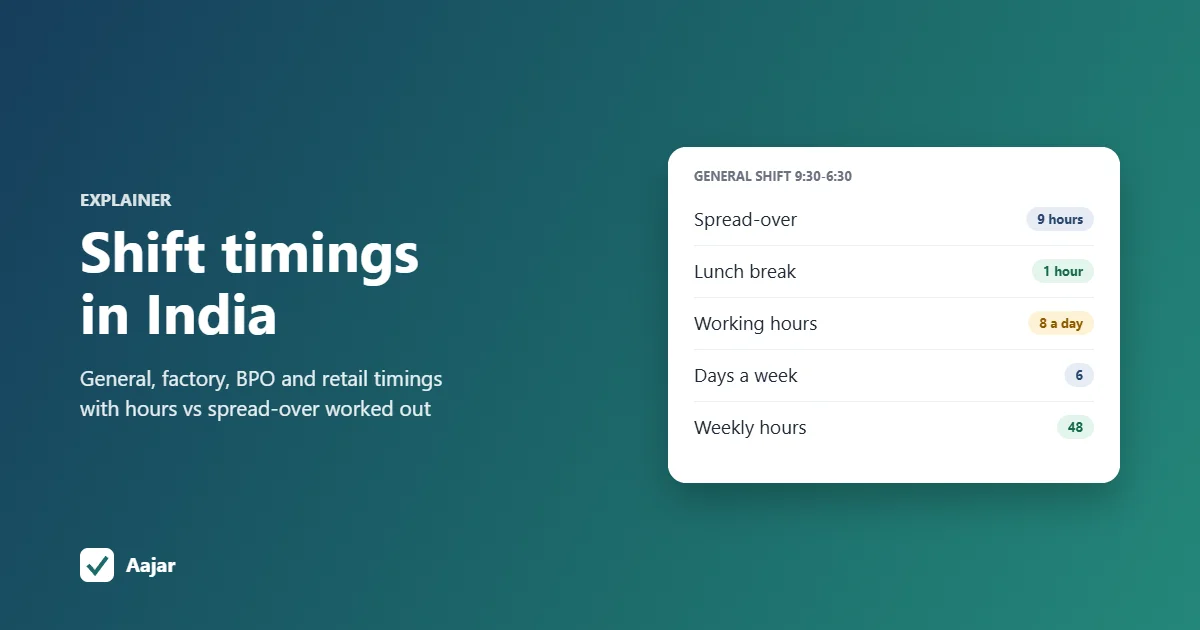
Shift Timing in India: General Shift, Industry Timings and Legal Limits
Common shift timings in India by industry, general shift meaning, a 9:30-6:30 hours example and the OSH Code limits to check.
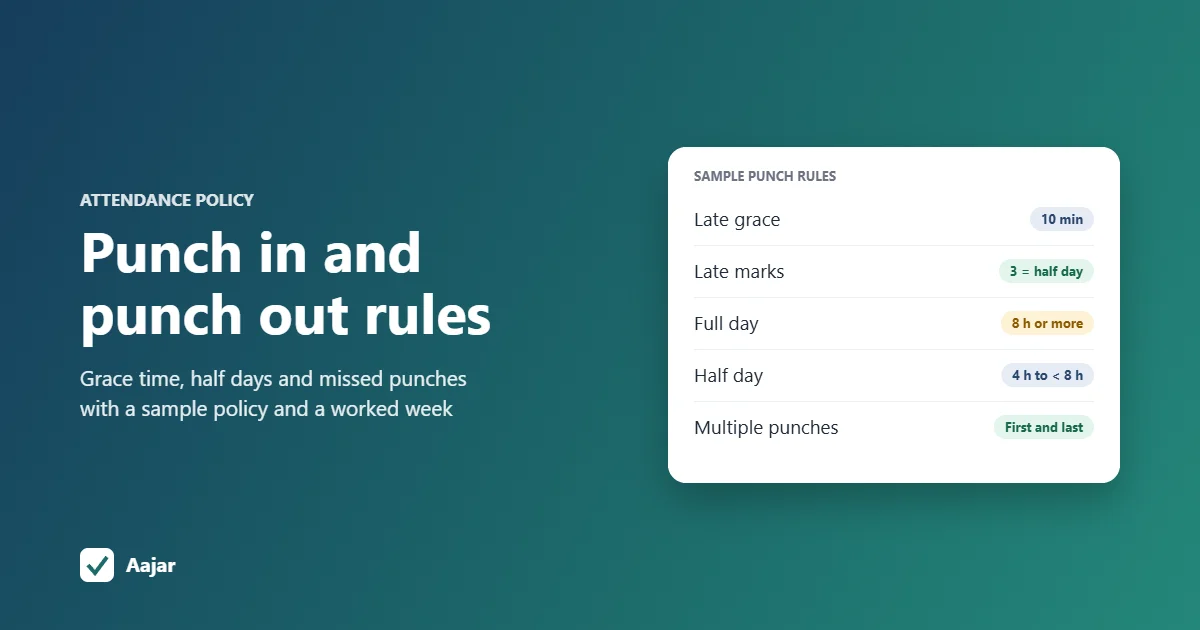
Punch In and Punch Out: Rules Every Small Business Should Set
What punch in and punch out mean, and the grace time, half-day, missed punch and overtime rules a small business should write down.
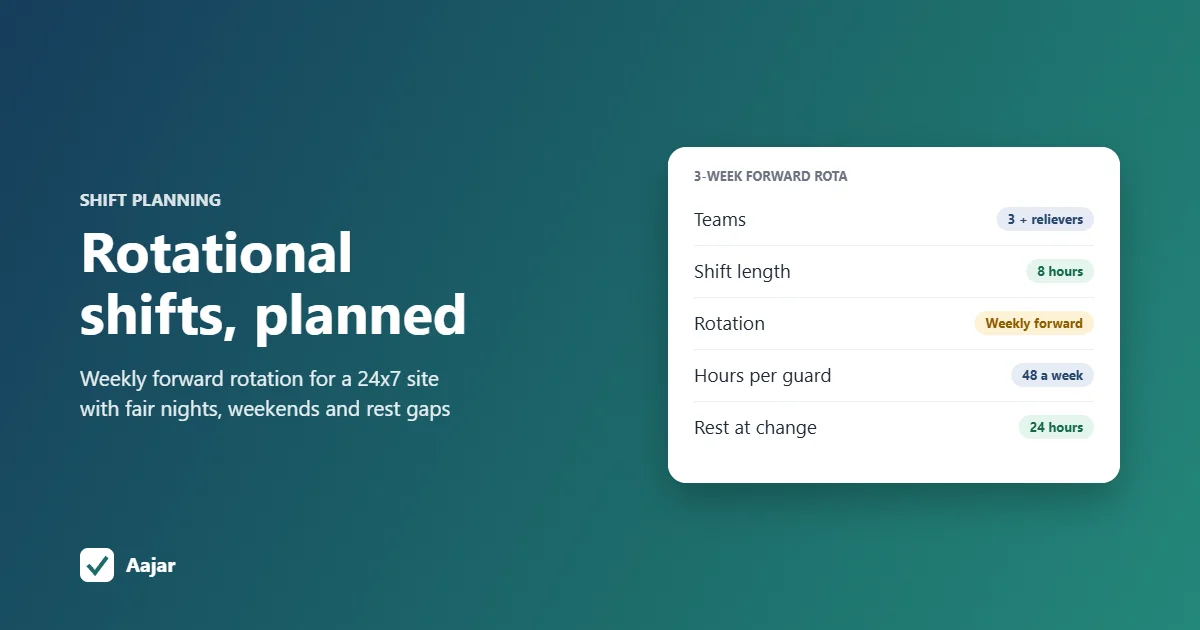
Rotational Shift: Patterns, Fair Planning and a 24x7 Example
Rotation patterns compared, a fair-planning checklist and a 3-week roster for a 24x7 site that stays within 48 hours a week.