eSSL Biometric Attendance: How to Connect Your Device to a Cloud App
Step-by-step: connect an eSSL biometric machine to a cloud attendance app using ADMS, with no eTimeTrackLite PC or static IP needed.
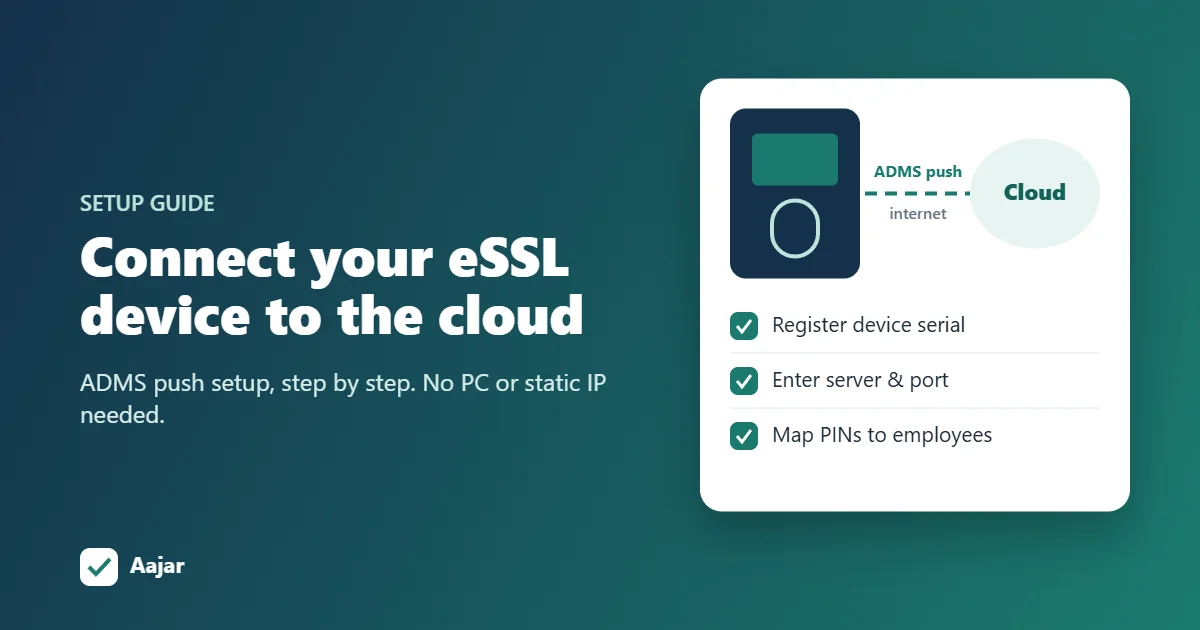
Short answer: most recent eSSL fingerprint and face terminals can send punches straight to a cloud attendance app over the internet, using a setting called Cloud Server Setting or ADMS. You register the device's serial number in the app, then enter the server address and port on the device. Finally, you match each person's enrollment number (PIN) on the machine to their employee record. You don't need eTimeTrackLite running on an office PC, and you don't need a static IP.
This guide explains how the connection works, how to check whether your eSSL machine supports it, and the exact steps to connect it to Aajar. It also covers what to do if your device has no internet connection.
eTimeTrackLite vs a cloud attendance app
Many eSSL machines in India were set up with eTimeTrackLite, the desktop software that pulls punches from the device over the office network. A cloud app works differently: the device pushes each punch out to a server on the internet.
| eTimeTrackLite (desktop) | Cloud app via ADMS | |
|---|---|---|
| Where data lives | On one office computer | On the cloud app's server |
| Needs a PC switched on | Yes, to download punches | No; the device sends punches itself |
| Access from outside the office | Hard; needs remote access or VPN | Any browser, any location |
| Several branches | Separate setups per site | All devices report into one account |
| Leave and payroll | Export and process separately | Punches feed attendance, leave and payroll directly |
What is ADMS?
ADMS, also called iClock or push protocol, is the communication method that ZKTeco devices introduced and that many eSSL and other OEM terminals use as well. When it is switched on, the device connects to a server address you choose and sends its attendance log over HTTP or HTTPS. Because the device starts the connection itself, your router does not need port forwarding or a fixed public IP. It only needs to reach the internet.
ADMS was never formally standardised, so firmware versions differ in small ways. Most devices that show a Cloud Server or ADMS menu work, but it is worth testing one device before rolling out to every branch.
Check whether your eSSL device supports cloud push
- On the device, press Menu and open Comm (sometimes shown as COMM or Communication).
- Look for Cloud Server Setting, ADMS or ADMS Setup.
- If you see it, the device can push to a cloud app. If you don't, check for a firmware update with your eSSL dealer, or use the log import method described below.
The device also needs an internet connection, through an Ethernet cable or Wi-Fi if the model has it.
How to connect an eSSL device to Aajar, step by step
Biometric device sync is part of Aajar's Business plan (₹50 per user per month, free for the first 3 months for teams of up to 50 users). An Owner, Admin or HR user does the setup.
1. Register the device in Aajar
Open Biometric Devices in Aajar and add the device using the serial number printed on its label or shown in the device's own menu. Aajar can also give the device a Comm Key, an optional extra check for models that support one.
2. Connect the device to the internet
On the device, go to Menu → Comm → Ethernet (or Wi-Fi) and make sure it has a working network address, gateway and DNS server. If names don't resolve, a public DNS server such as 8.8.8.8 usually fixes it.
3. Enter the cloud server details on the device
Go to Menu → Comm → Cloud Server Setting (or ADMS), turn it on, and enter what Aajar shows on the Biometric Devices screen:
- Server Address: the address shown in Aajar. If your device has an "Enable Domain Name" option, turn it on so it accepts a web address instead of an IP.
- Server Port: the port shown in Aajar. If your device has an HTTPS switch, set it to match.
- Comm Key: the key shown for that device in Aajar, if your device asks for one.
- Proxy server: leave it off unless your network requires one.
The device adds its own path automatically, so there is nothing else to type. On most models, a connection icon appears on the home screen once it reaches the server.
4. Match biometric IDs to employees
Each person on the device has an enrollment number, or PIN. In Aajar, record each employee's biometric ID one by one or with a bulk upload matched by Employee ID or email. Use the same PIN for a person on every device they use.
5. Test with a punch
Ask one person to punch in, then check the recent punches list in Aajar. A punch from a PIN that isn't mapped yet is kept and shown as unmatched rather than lost. When you add that person's biometric ID, their earlier punches are attached automatically.
How punches become attendance
Aajar keeps one attendance record per person per day. The earliest punch of the day is the check-in and the latest is the check-out, so extra punches during the day (lunch breaks, repeated thumbs) don't create errors. The device's own in/out button isn't relied on, because models handle it differently. If HR has corrected a day by hand, the correction stands and later punches don't overwrite it. Late marks, half days and leave then work exactly as they do for phone check-ins, and the results flow into payroll.
No internet on the device, or a different brand?
You can still use a cloud app. Every vendor's software, eTimeTrackLite included, can export the device's attendance log. Put the export into two columns, biometric ID and punch date and time, and upload it on the Biometric Devices screen under Import a device's log. Imported punches are processed exactly like pushed ones.
Troubleshooting
| What you see | Likely cause | What to do |
|---|---|---|
| No connection icon on the device | No internet or DNS on the device | Check the cable or Wi-Fi, gateway and DNS under Comm → Ethernet |
| Device connects but no punches appear | Serial number mismatch or firmware differences | Compare the serial in Aajar with the device menu; if it still fails, send support the exact model and firmware version |
| Punches show as unmatched | The PIN isn't mapped to an employee | Add the biometric ID to that employee; past punches attach automatically |
| Times are off by hours | Device date, time or time zone is wrong | Set the correct date, time and time zone (India, UTC+5:30) on the device |
| Device won't accept a web address | Domain name option is off | Turn on "Enable Domain Name" in the Cloud Server menu |
Frequently asked questions
Which eSSL models work with a cloud app?
Models that show a Cloud Server Setting or ADMS option under the Comm menu, which includes many recent eSSL fingerprint and face terminals. Firmware varies, so test one device first.
Do I still need eTimeTrackLite?
No. Once the device pushes to a cloud app, you don't need the desktop software or a PC left on. You can keep it installed for a while as a backup during the switch.
Can I connect devices in several branches?
Yes. Register each device by its serial number. Punches from every branch land in the same account, matched to the same employees.
Is a static IP or port forwarding needed?
No. With ADMS the device connects out to the server, so it only needs normal internet access.
Which Aajar plan includes biometric sync?
The Business plan, at ₹50 per user per month plus GST after the free period. It also includes expense claims, hiring requests and an asset register. See pricing, or read about choosing an employee attendance app.
Keep reading
Rotational Shift: Patterns, Fair Planning and a 24x7 Example
Rotation patterns compared, a fair-planning checklist and a 3-week roster for a 24x7 site that stays within 48 hours a week.
Shift Management for Small Teams: Coverage, Swaps and Fairness
How many staff each shift needs, worked through for a 15-person restaurant, plus shift swap rules and ways to keep rosters fair.
Duty Roster Format: Free Shift Roster Templates for Retail, Security and Hospitals
Three ready duty roster formats for retail, security and hospital wards, plus shift codes and Excel steps to build your own.